Configure dispatch and optional external installations
Saved dispatch and radio settings apply to this hosted community. Pairing is optional and only needed to push settings to an additional external installation.
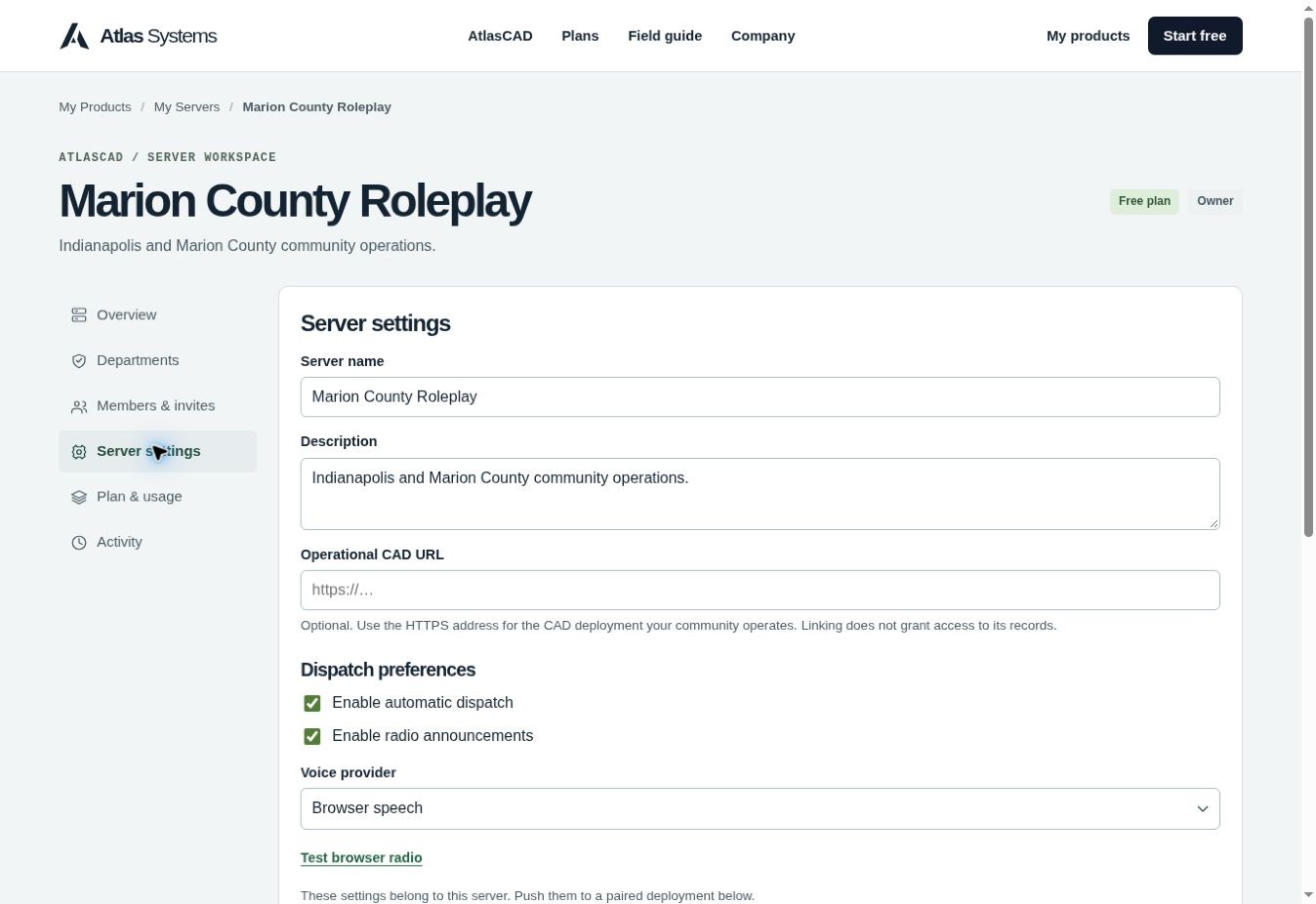
Optional: link a separate CAD address
- Open your server and select Server settings. The owner can enter the complete HTTPS address for their operational CAD.
- Save server settings. A Separate installation link appears alongside your hosted CAD. Opening it still requires the appropriate operational login.
Optional: pair an external deployment
- In Operational deployment, expand Pair a CAD deployment. Use your installation’s Firebase project ID and public web API key from its web app configuration. Never enter a service-account key.
- Sign in with an active owner of that CAD installation. Pairing also requires the customer portal server owner. The same Firebase project cannot be paired to two AtlasCAD servers. Pairing itself does not change dispatch.
Apply preferences to a live shift
- Save the desired automatic dispatch and speech settings above the pairing panel. Free uses browser speech. A configured cloud-capable installation also needs its operational voice service; plan approval alone does not install it.
- Expand Apply saved settings and sign in with an active CAD owner or administrator. A successful response means the deployment accepted the update. Unsaved form edits are not applied.
- If verification fails, check the exact project, its public web key and restrictions, and the operator’s active role. Other operational controls, including badge and record access, continue to use the CAD’s own permissions.
Discuss this guide
No public questions linked to this guide yet.
Start a discussion