Create your first server
Go from a new customer account to a server that your first members can join. Creating the community also creates its CAD; no card or installer is needed.
Create a customer profile
- Choose Start free. Sign in with your Atlas email or username and password. For a new account, verify your email, then choose your username. Returning owners should use their original verified email to keep their servers.
- Choose a display name. This is the name members see on your roster; the email attached to your customer profile does not appear there.
Name the server
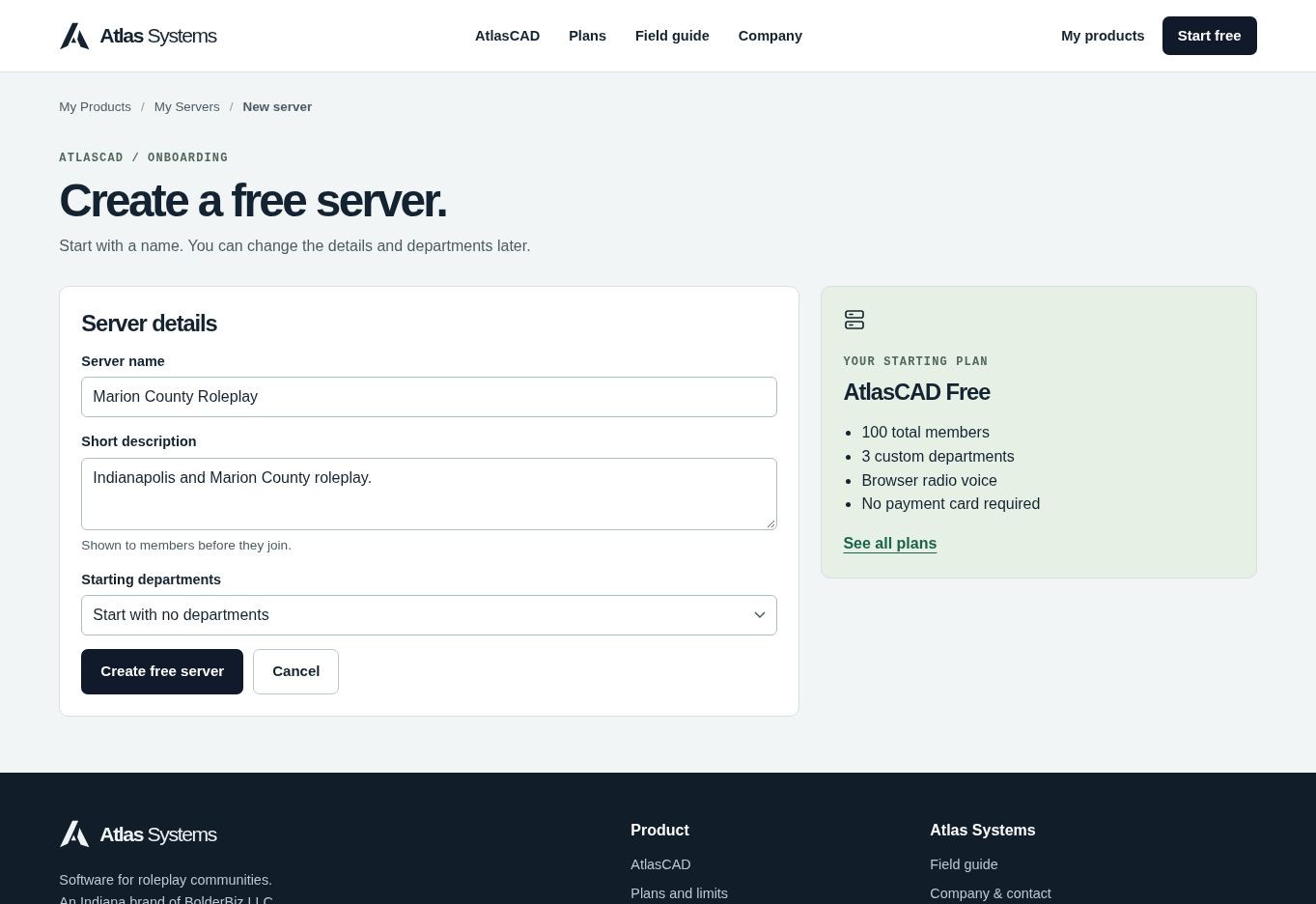
- Open My Products → My Servers → Create a server. Enter a name of 3–70 characters. Add a short description that a recruit will recognize when they open an invite.
- Enter your country or world, state or territory, county or region, city, abbreviation and time zone. Choose no departments for a clean start, or create three local law enforcement agencies. You can rename or remove them later.
- Select Create free server. Your community’s dispatch desk opens. To invite members or create departments, open Start → My server, or return to My Products → My Servers.
What this creates
Your permanent CAD address belongs to this community. It starts with an empty call board and records database. Free includes 150 members and three law enforcement departments. Existing communities can use Open CAD without creating another server.
Discuss this guide
No public questions linked to this guide yet.
Start a discussion