Open your community CAD
Find the workstation for a new or existing community, bring a unit on duty, and give members the right access.
Open your first shift
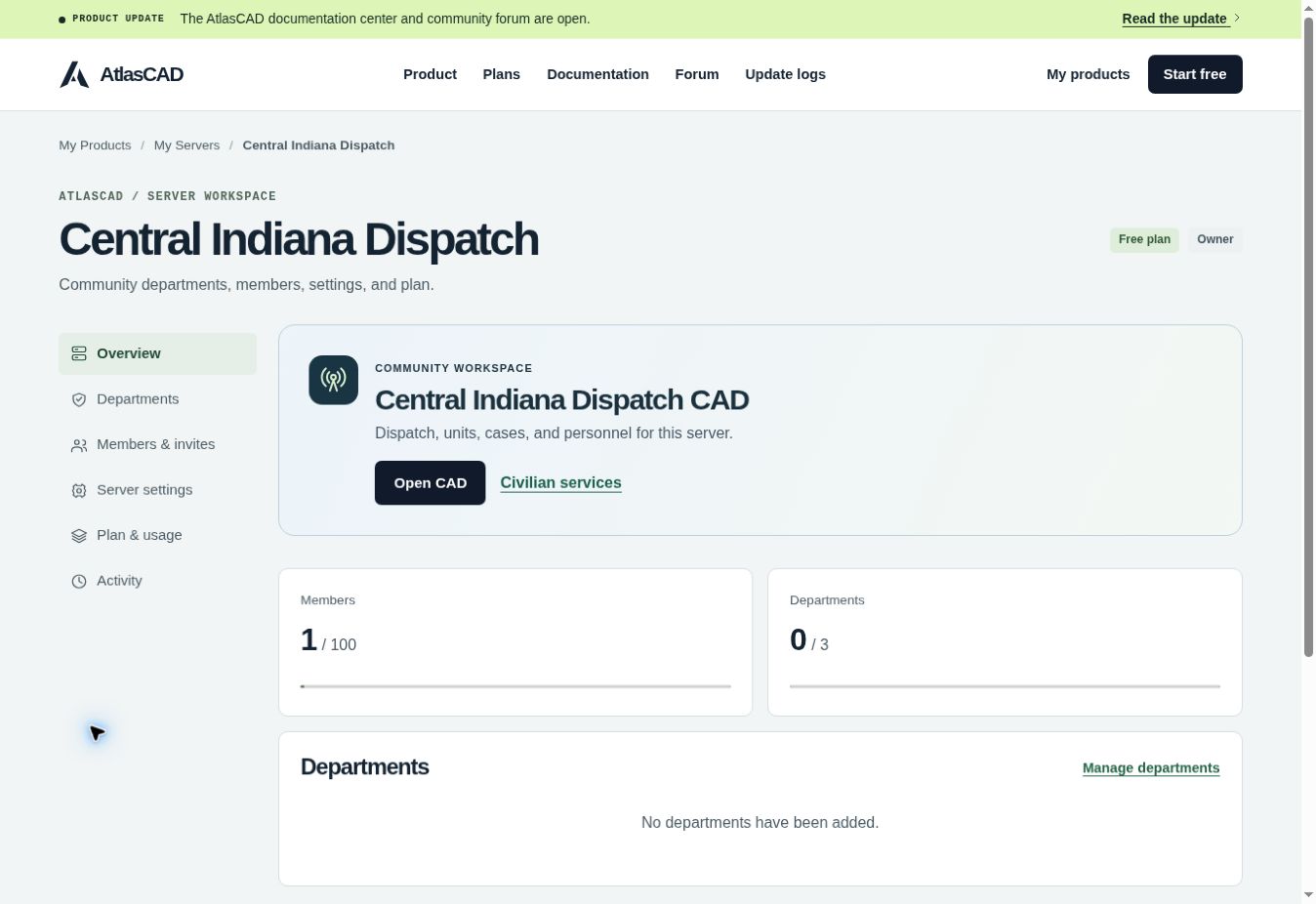
Open My Servers and choose Open CAD next to your community. Creating a new server opens this same desk immediately. If you already have a server, keep it; its membership, settings, and department icons carry over. No installation URL, Firebase project, or second account is required.
Check that dispatch works
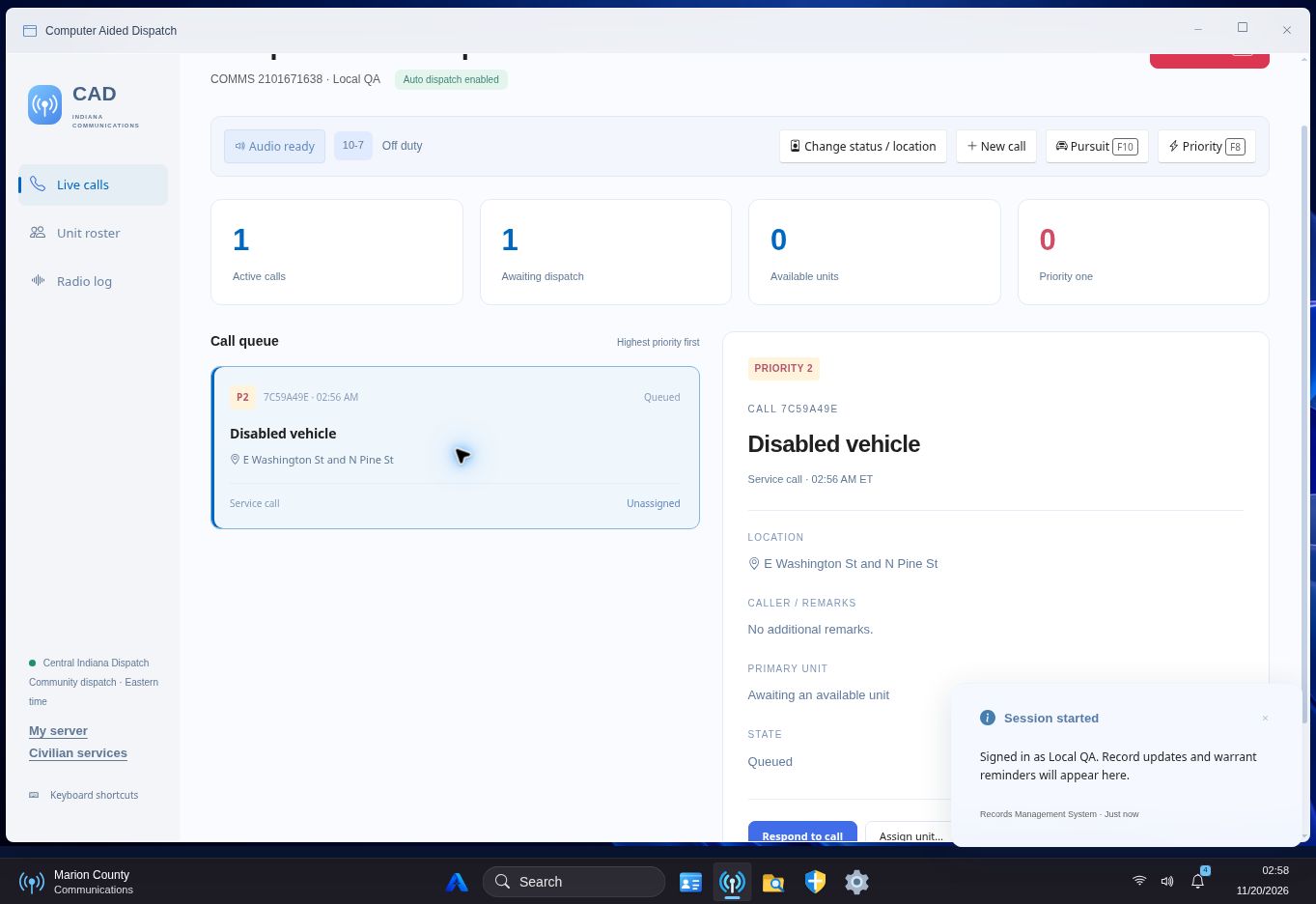
Set your unit to 10-8 · Available. Create a service call and enter a location. Your community’s other on-duty operators see it on their board. With automatic dispatch enabled, the next eligible unit is assigned. The assigned officer can acknowledge and clear it.
Invite your community
In My Servers → Manage → Members & invites, send an invitation. New members can open civilian services. Assign them a department to grant workstation access; owners and administrators can open dispatch even when the department list is empty. Removing membership also removes access through bookmarked links.
Where the records go
Every community uses a different permanent address and a separate set of calls, IDACS records, civilian registrations and payments. Personal notes stay with their author. An optional separate installation keeps its original records. No records are copied from another community.
Return to this desk
Bookmark the community address or use Open AtlasCAD. If you belong to several servers, choose one. In the desk, Start → My server opens your administration page and Start → Civilian services opens InBMV, InBIZ and InPAY.
Discuss this guide
No public questions linked to this guide yet.
Start a discussion